How-to videos
See Homebook in action
Short, complete walkthroughs for families, teachers, directors and students, recorded in our demo school. Each role also has a one-page quick-start PDF.
Homebook is an ADE-approved Arkansas EFA vendor.
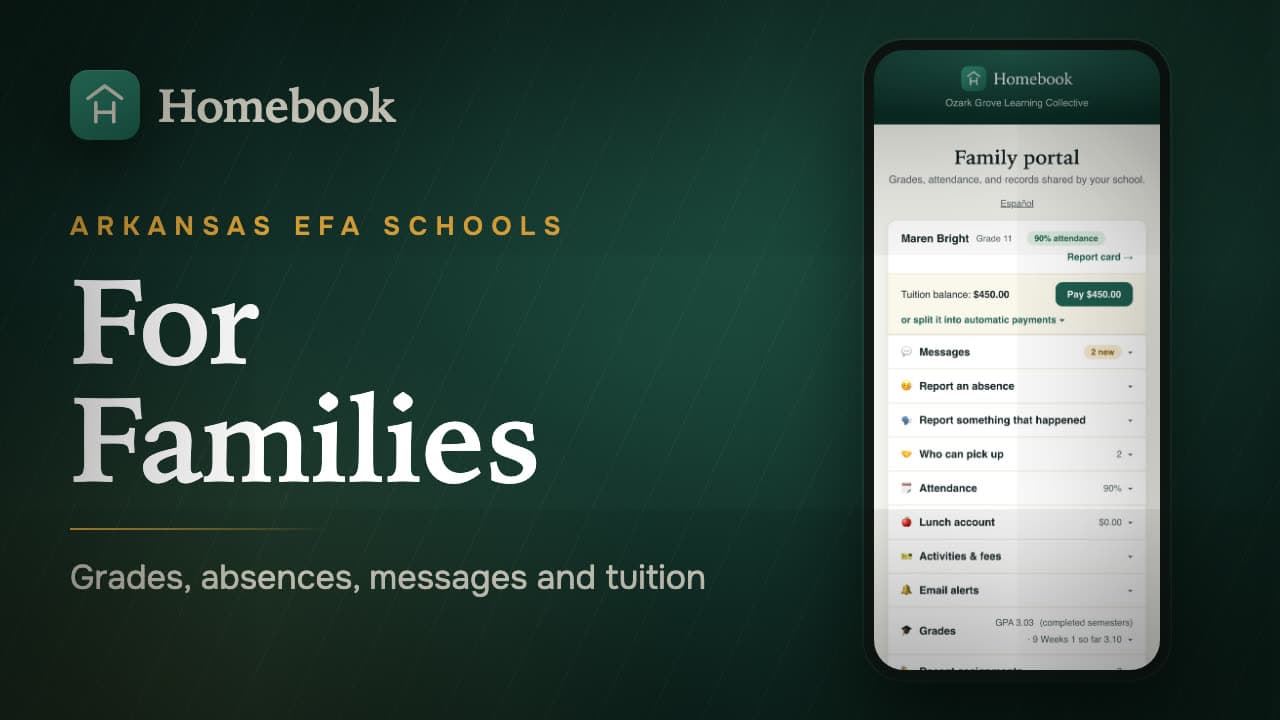
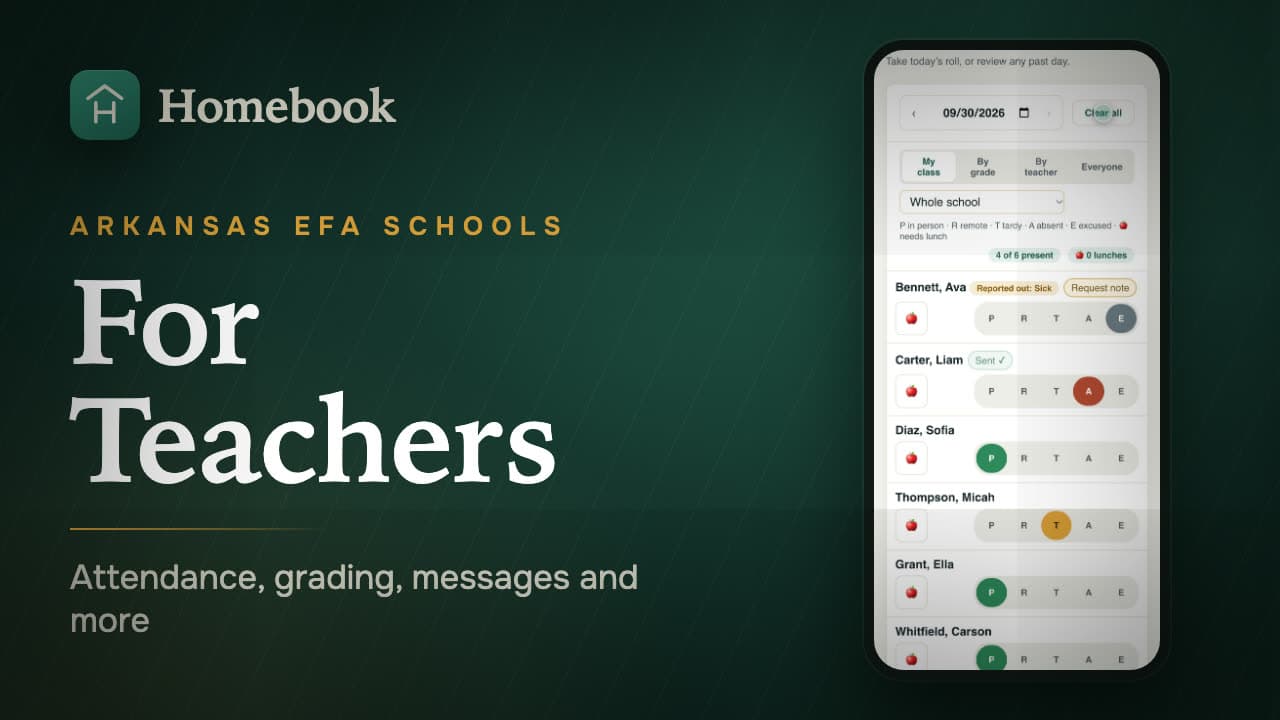
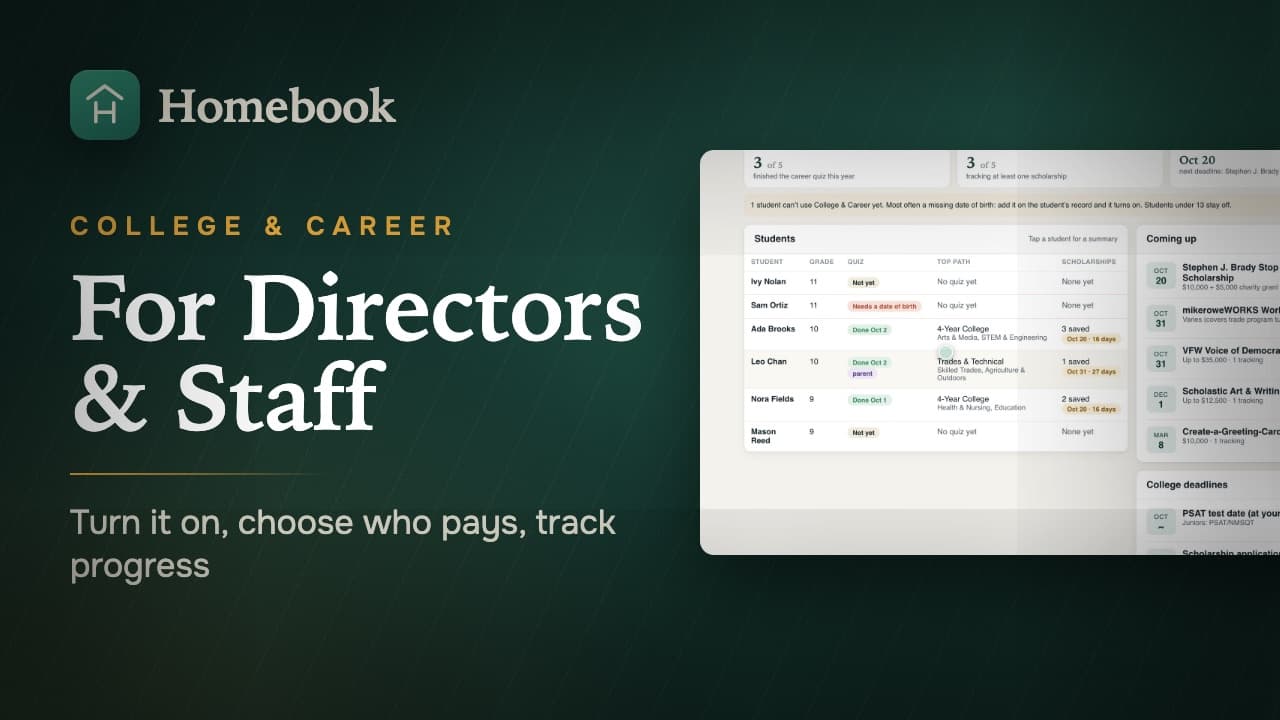
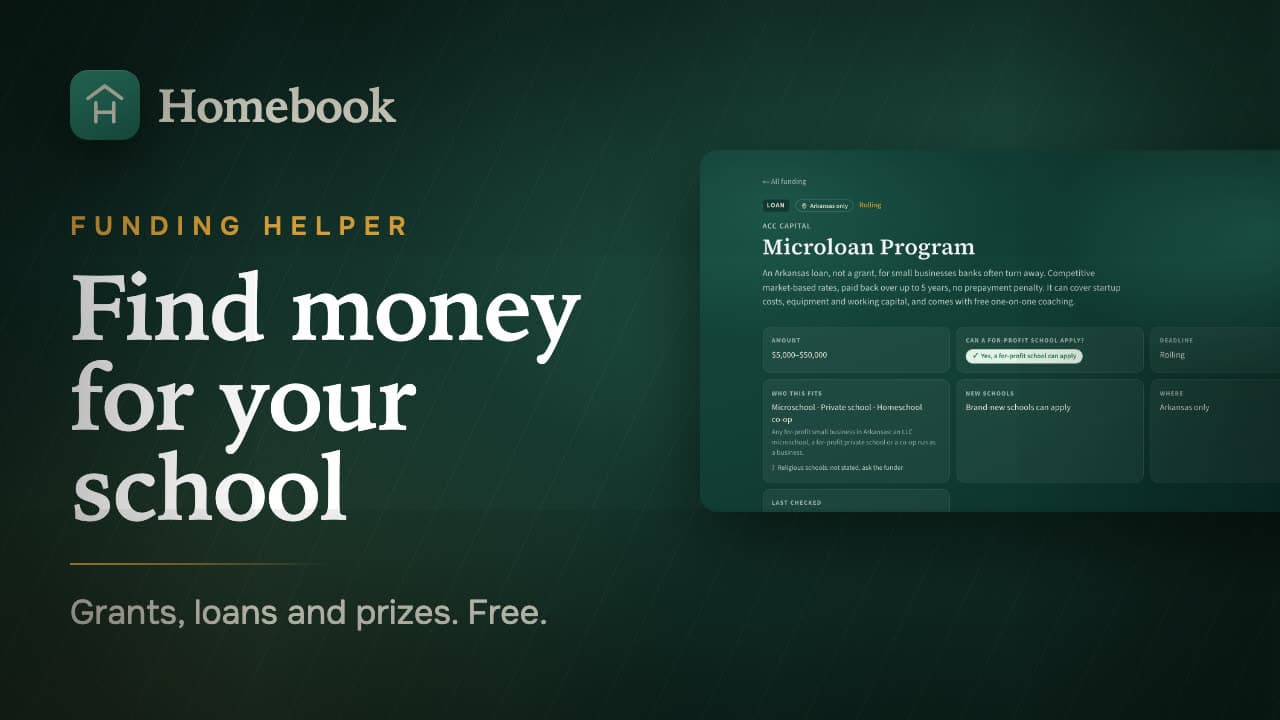
Recorded in our demo school. None of these are real children. Prefer reading? The written guide is below.
Print it, pin it
Quick-start one-pagers
One page per role, with the first steps marked on the real screens. Open it on a phone or print it for the staff room.
 Director quick-start (PDF, one page)Your first 30 minutes: sign in, set up, add students, invite families, each day, privacy requests.PDF0.5 MBOpen
  Teacher quick-start (PDF, one page)Join with your invite link, take attendance, grade, message families, request time off.PDF1.0 MBOpen
  Family quick-start (PDF, one page)Open your sign-up link, your portal, grades and tuition, absences, who can pick up, privacy.PDF1.1 MBOpen
  Student quick-start (PDF, one page)Log in, see your attendance and work, tell the office, privacy, log out.PDF1.0 MBOpen
How Homebook works
Updated September 30, 2026
On this page: The office · Teachers · Families · Students · Words Homebook uses
Before you start: who signs in where
- The office (Director, office manager, principal) sees the whole school and sets it up.
- Teachers see their own classes and children — roll, grades, messages, records.
- Families use the family portal — their child’s grades, attendance, messages, money. Parents sign up from a link the office gives them. If the school turns student logins on, older students (6th grade and up) can also have their own login in a web browser (not the app).
When a new version of Homebook is released you’ll see a green bar at the bottom of the screen. Tap it and the page reloads with the new version. A reload clears anything you haven’t saved, so save or send what you’re working on first. If you’ve typed something on the page, the bar reminds you and waits until you tap Update now. Not a good moment? Tap Later and it comes back in a couple of hours.
The office
Setting the school up (first week)
- Settings → School. Name, city, school type, the time the school day starts (a child checked in after it is marked tardy), and the contact email families see.
- Settings → Your terms. Enter your grading periods with dates. Attendance percentages and report cards count by date, so undated terms go wrong quietly.
- Settings → What your school uses. Turn on only what you run: lunch, tuition, classes, periods (a bell schedule), check in / out, merchandise. Screens you don’t use never appear.
- Students → Roster → Import roster, or add children one at a time. Each child needs a guardian name and, for messages to reach home, a guardian email.
- School setup → Classes. One class per room or subject with its teacher. “Set up many classes” builds a whole grade band at once. Open a class to tick the children in it and, if you co-teach, the other teacher under Co-teachers.
- School setup → Periods (only if you run a bell schedule). Add the periods that take attendance and put each class on its period. A class on no period never asks anyone to take roll for it — the dashboard tells you when that happens.
- School setup → Staff. Invite teachers; set who is an admin, who can add students, and who receives discipline notices.
- Settings → Discipline letters (directors). The wording of the restorative reset letter families receive when a child is sent home. Edit it to sound like your school; Go back to the default letter undoes your changes.
- School setup → Calendar. Add holidays and closure days. On a day marked “no school” nobody is nagged to take attendance, and families see it as a day off.
- Settings → Share links. Give families the sign-up link (or print Reports → Family sign-up slips, one per child). You approve each family request under Students → New enrollments before they can see anything. Invites sent from Homebook — the Email a teacher and Email a parent buttons, Share links, and the printed slips — include a link to the matching how-to video.
- Ask families to fill in Who can pick up in their portal. The front-desk sign-out screen checks names against that list.
Every day
- Dashboard. The numbers first: enrolled, present today, out right now, plates today, owed to the school. Below them, anything that needs a hand — classes with no roll call yet, families waiting to be approved, absence reports from families, and a “Things to do” panel. Post a note puts a message in front of every staff member when they sign in; Email families sends to every family or one class.
- Attendance → Take attendance. The whole-school day sheet: P / T / A / E per child, or Mark all present and fix the exceptions. Teachers take their own class roll calls; the day sheet is the school’s word on the day. A Missed Period note on the day sheet (for example “Missed Period 2 · Math”) is a link: click it to open that class’s roll call for that day.
- Attendance → Check in / out. Who is in the building and who left early or arrived late, with who collected them. Start the family sign-in screen turns a front-desk iPad into a kiosk (it asks for your PIN to leave kiosk mode).
- Messages. Every conversation with a family, newest first; replies go to the child’s record and by email. A family’s message stays waiting until someone replies in that conversation — announcements and class emails don’t count as a reply, and show with a 📣 Announcement label. Staff is a chat for the team.
- Money. Lunch charges and payments, fees and field-trip money, tuition. Families can pay online from the portal if Homebook Payments is on.
- Compliance. Your state program’s deadlines and to-dos (the EFA in Arkansas), assessments, benchmark testing.
- Reports. Grouped as Attendance · Grades & records · People & safety · Money & lunch. Every report prints or exports to a spreadsheet. The Attendance summary and Absences reports take From / To dates, so you can run them for one month.
- Reports → Perfect attendance lists the children with no absence (excused ones included), no tardy, and no class time lost to a late arrival or early pickup in the dates you choose. A day nobody marked isn’t held against a child; it’s noted beside their name. If your school runs periods, an admin can tick Only a first-period tardy counts so a tardy to a later class doesn’t take a child off the list.
End of a term
- Grades → Concluding a term locks a term so nobody can change a grade in it. Do this when report cards go out.
- Reports → Progress reports (mid-term, one page per child) and Report cards — everyone (one per child, the whole school in one print).
- Settings → End of year promotes every student to the next grade (Pre-K → K … 11 → 12) and graduates the seniors. Do it once, after the last report cards.
When something is wrong
Tickets (in the top menu). Every message reaches Sam directly; you’ll see the fix noted on the ticket. Teachers and families can send them too. The Fix it page lists the problems schools actually hit in their first weeks, with the fix for each.
Teachers
The first thing you’ll see
Your dashboard: how many of your children are present today, absence reports families have sent, and My classes with three buttons per class — Roll → (take attendance), Gradebook, and Report card.
Taking roll
- Attendance → Take attendance is the day sheet for your children: P present, T tardy, A absent, E excused. Mark all present, then change the exceptions.
- If your school runs periods, Attendance → Roll calls lists the classes you need to mark today, in order, with what’s already done. Use the arrows to go back a day.
- A Missed Period note on the day sheet or the Absences report opens that class’s roll call for that day, so you can check or correct it.
- A class that never appears in your roll calls is not on the schedule yet — ask the office to put it on a period (Tickets reaches them).
- Families can report an absence from their portal; it shows on your dashboard so you know before the roll.
Grades
- Gradebook is the grid: one row per child, one column per assignment. Click a column heading to edit the assignment; click a child’s name to open their sheet for that class (printable, with a parent signature line).
- Categories on a class set weights (tests, homework, participation). If you don’t set any, every assignment counts equally.
- Enter one assignment scores a single assignment for the whole class at once — the fastest way after a quiz.
- Import scores takes a Google Classroom or spreadsheet export.
- Grades (the tab) shows every child’s grades and GPA in one place. K–8 schools can use a standards scale instead of letters — the office chooses.
- Terms can be concluded by the office; a concluded term is read-only.
Talking to families
- Messages → Families. Every conversation about your children. Replies go to the child’s record and are emailed home.
- Email a class (under Messages) sends one message to every family in a class. You can schedule it.
- Families can only see what the school has shared: grades, attendance, messages, report cards.
Your children’s records
- Open a child from Students for their profile, guardian contacts, documents, photo, notes, and schedule.
- You see the children in your classes and the ones the office assigned to you. Documents and photos follow the assignment.
- Discipline. On a child’s record, log a notice. Log & email parent… saves it and shows you the exact email first — nothing is sent until you press Send, and only the child’s guardian and approved family accounts receive it. A notice marked Sent home also offers a Reset letter: a restorative letter with the return date, in your school’s wording, previewed the same way.
- Co-teaching: if the office adds you as a co-teacher of a class, you get it exactly as its teacher does — roll, gradebook, messages, records. Only the office or the class’s own teacher can change the class itself.
Reports you can run
Attendance summary, Who wasn’t marked, Absences by day and period, Grades, Progress reports, Report cards, Perfect attendance, Family sign-ins (which parents have actually logged in), Emergency roster, Class lists, Sub sheet.
Time off and hours
- Calendar → Request time off files a request; the office approves under Attendance → Time off.
- Attendance → My hours if your school tracks hours.
Families
- Sign up from the link the school sends (or the slip they hand you). The office approves your request — usually the same day — and you get an email.
- The portal works on a phone. At the top: your child, their attendance, Report card, and the tuition balance with a Pay button if the school takes payments online. Below, one row for each thing: Messages, Report an absence, Report something that happened, Who can pick up, Attendance, Lunch account, Activities & fees, Email alerts, Grades, Classes & teachers, Assessments, Tuition & payments. Tap a row to open it.
- Search — the box at the top of the portal finds homework, a message, the pickup list, tuition, a day off on the calendar, or what you want to do (“pay”, “report an absence”). It only ever searches your own children. It works in Spanish too.
- The free Homebook School app — App Store for iPhone, Google Play for Android. Sign in with the same email and password. On iPhone it also sends a notification when the school messages you. You don’t need it: the portal works the same in any phone browser.
- Español at the top switches the portal to Spanish.
- Who can pick up — add the people allowed to collect your child. The front desk checks names against this list.
- Email alerts — be emailed if a grade falls below a mark you choose, or after a number of absences or tardies you set. Leave a box empty to turn that alert off.
- Something not working? at the bottom sends a note to the office.
You receive an email when a teacher messages you, when an absence you reported is handled, and for lunch or activity notices if your school uses them.
Students (6th grade and up)
If the school turns student logins on, the office can give older students their own login using their school email, in a web browser (not the app). A student sees only their own grades, marked work and attendance, and can write to the office with Tell the office. They cannot see other students or message anyone.
Words Homebook uses
- Day sheet — the whole-day attendance the office keeps. It is the school’s record of the day.
- Roll call — attendance for one class in one period. Only schools that run periods have them.
- Period — a slot in the bell schedule. Classes are put on periods.
- Term — a grading period (quarter, nine weeks, semester). Terms have dates.
- Assigned teacher — the teacher on a child’s record; gets the child’s documents, photos and absence alerts. Normally the owner of the child’s class; Homebook keeps that link up to date.
- Co-teacher — a second teacher on a class, with everything the first one has for teaching that class.
- Substitute — a stand-in on a class between two dates.
- EFA — Arkansas’s Education Freedom Account program; the Compliance tab tracks its deadlines.
Something missing here? Say so on the Tickets tab in the app, or email sam@gethomebook.com.